Schedule Threads Posts Automatically Using n8n and Google Sheets
Threads has no native post scheduler. Here's the n8n automation we built to fix that, auto-publishing posts from Google Sheets on a schedule with error tracking built in.
The Problem
Most major platforms, including Instagram, X, and LinkedIn, let you schedule posts natively or through approved partner tools. Threads doesn't. If you want a post live at a specific time, someone has to open the app and publish it manually.
That's a small annoyance for an individual, but it adds up quickly for anyone managing a consistent posting schedule, whether they're a creator, a brand account, or a team running content for multiple clients. Manual publishing means missed windows, inconsistent timing, and someone's calendar getting interrupted for a task that shouldn't require a human at all.
There wasn't a clean off-the-shelf solution, so we built one in n8n.
Workflow Overview
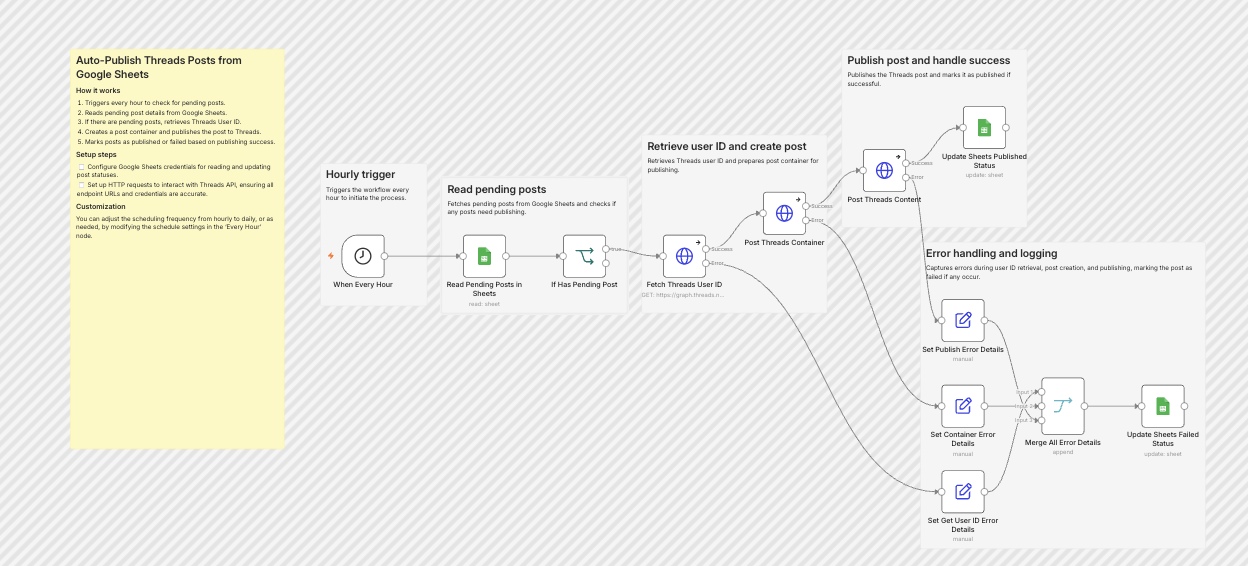
At a high level, the workflow follows a simple queue-based publishing process. New posts are added to Google Sheets with a pending status. Every hour, the workflow checks the queue, publishes the next available post to Threads, and updates the spreadsheet with the result.
This approach turns Google Sheets into a lightweight content calendar while ensuring every post has a clear publishing status and audit trail.
The Build
The workflow runs every hour and processes the next available post from a Google Sheets queue.
- Scheduled trigger
- Read the queue
- Authenticate with Threads
- Create the post container
- Publish the post
- Handle failures
Scheduled Trigger
Runs every hour without any manual intervention.
Read the Queue
Checks Google Sheets for the first row where the status is marked pending.
Authenticate with Threads
Retrieves the authenticated account's user ID through the Threads Graph API.
Create the Post Container
Prepares the Threads post using the content from that row.
Publish the Post
Sends the post live and updates the sheet with:
status = publishedposted_atupdated_at
Handle Failures
If any API call fails, the workflow captures the error and updates the row with:
status = failederror_messageupdated_at
Error tracking is what turns a simple automation into something you can trust running unattended. A failed post doesn't disappear into logs or silently block the queue. The workflow records exactly what went wrong, making it easy to fix the issue and retry.
What's Needed to Set It Up
To run this workflow, you'll need:
- A Meta app with Threads API access
- A valid Threads access token
- Google Sheets credentials
- A spreadsheet containing the following columns
Required Spreadsheet Columns
- row_number — Internal row reference
- content — Post content
- status — pending, published, or failed
- posted_at — Publication timestamp
- updated_at — Last update timestamp
- error_message — Failure details
Once configured, publishing a post is as simple as adding a new row and setting its status to pending.
What We'd Customize for a Real Setup
This implementation is intentionally simple. Most production setups require additional workflow logic based on how a team operates.
Common customizations include:
- Multiple Threads accounts managed from one content queue
- Approval workflows before publishing
- Automatic retries for temporary API failures
- Slack or email notifications for successful or failed posts
- Content pulled directly from a CMS or content calendar
- AI-assisted content generation before scheduling
- Publishing analytics and reporting
Outcome
Before
- Manual publishing
- Missed posting windows
- No visibility into failed posts
- Time spent checking whether content went live
After
- Posts publish automatically
- Every post has a tracked status
- Failures are logged with actionable error messages
- Content managers only need to add rows to a spreadsheet
- Publishing history remains visible in one place
The result is a lightweight scheduling system that runs unattended while providing full visibility into what was published, when it was published, and what needs attention if something goes wrong.
Use This Workflow
If you'd like to use this exact automation, you can import the complete n8n workflow template into your own n8n instance.
The template includes the workflow structure, Google Sheets integration, and Threads publishing logic covered in this article.
Once connected to your Threads API credentials and Google Sheets account, the workflow can automatically publish scheduled posts, track publishing status, and log any failures for review.
The template is intended as a starting point and can be extended with approval workflows, notifications, analytics, AI-assisted content generation, or support for multiple Threads accounts.
Why This Matters
This workflow is a good example of the kind of automation we focus on at Orchiv.
It isn't about adding AI for the sake of AI. It's about removing recurring operational tasks that consume time every day. Small inefficiencies compound quickly, especially when they're repeated across multiple accounts, teams, or clients.
By replacing manual actions with reliable workflows, teams can spend less time managing processes and more time creating value.
Need a similar automation for your business?
Start with a free workflow audit, or book a call if you already know what you need.